Quickstart
From an empty server to a supabase-js call against your first environment. These are the steps an empty-server rehearsal ran, on a clean Fedora 44 virtual machine with 4 CPU cores and 6 GB of memory (lab/vm-rehearsal.sh). It has not been run on a real server yet, and the HTTPS step at the end has only been checked with a self-signed certificate. Sbarbase is in development: do not put data you cannot lose on it.
With Docker on the server, Install with Docker is shorter and does not depend on the host's Python. This page is the systemd path.
Before you start, read choosing a server. You need root on a Fedora 44 or Ubuntu 26.04 server with 4 cores and 8 GB of memory (3 cores is the useful minimum) and 12 GiB of free disk. The rehearsal's 6 GB machine had room for exactly one environment, the one step 6 creates.
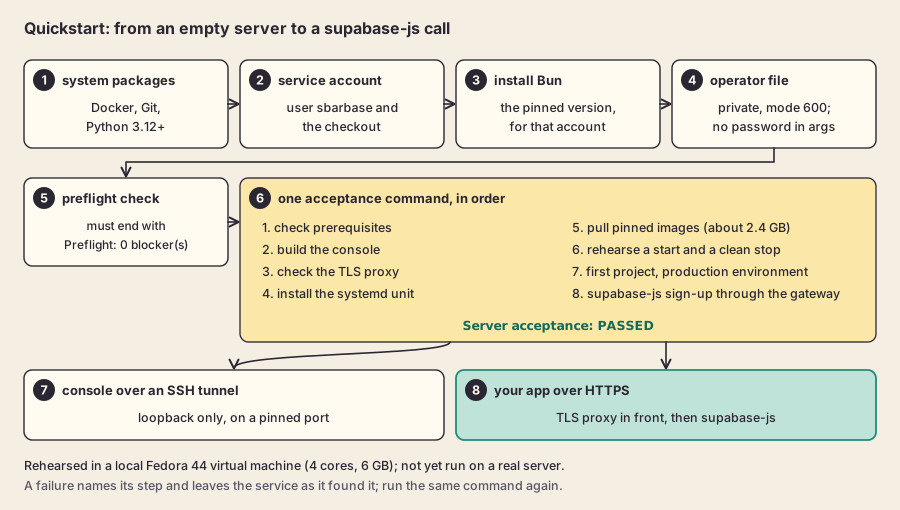
The whole path at a glance, as rehearsed in a local virtual machine; not yet run on a real server.
1. Install the system packages
On Fedora 44:
sudo dnf install -y moby-engine git python3-cryptography
sudo systemctl enable --now dockerOn Ubuntu 26.04, Ubuntu 24.04 or Debian 13:
sudo apt-get install -y docker.io git python3-cryptography curl unzip
sudo systemctl enable --now dockercurl and unzip are for the Bun installer in step 3. Check that /usr/bin/python3 --version says 3.12 or newer. The unit tests pass with the Python that Ubuntu 24.04 and Debian 13 ship, but this install has been rehearsed end to end only on Fedora 44, not on any of these three.
2. Create the service account and the checkout
Sbarbase runs as its own account, which holds the checkout under /opt/sbarbase:
sudo useradd -m -s /bin/bash sbarbase
sudo usermod -aG docker sbarbase
sudo install -d -o sbarbase -g sbarbase /opt/sbarbase
sudo -u sbarbase git clone https://github.com/M7MMAD-OMAR/sbarbase /opt/sbarbaseMembership of the docker group is equivalent to root on this host; the threat model explains why that is accepted for now.
3. Install Bun for that account
sudo -u sbarbase -H bash -c 'curl -fsSL https://bun.sh/install | bash -s bun-v1.3.14'The rehearsal copied the same Bun 1.3.14 binary into /home/sbarbase/.bun/bin instead; the official installer puts it in the same place.
4. Write the first operator's credentials to a private file
cd /opt/sbarbase
sudo -u sbarbase /usr/bin/python3 lab/operator_file.py /home/sbarbase/operator.jsonIt asks for an email, a client name and a password (twice, not echoed, at least 12 characters) and writes a mode 600 file. The password never appears in an argument, a log or the evidence.
5. Check the server
sudo -u sbarbase /usr/bin/python3 lab/install_server.py checkIt must end with Preflight: 0 blocker(s). Each blocker says what to fix, including the exact memory and core figures it needs.
6. Install, rehearse and create your first project in one command
sudo deploy/server-acceptance.sh --rehearse --install-unit --first-project \
     --service-user sbarbase --home /home/sbarbase --bun-dir /home/sbarbase/.bun/bin \
--docker-host unix:///var/run/docker.sock --bootstrap-file /home/sbarbase/operator.jsonIn order, it checks the prerequisites, builds the console, checks the TLS proxy, installs and starts the sbarbase systemd service, pulls the pinned images (about 2.4 GB, with progress), rehearses a start and a clean stop, starts the service again, then creates a project called "First project" with a production environment, issues a key, signs a user up with supabase-js through the gateway and revokes the key. It ends with Server acceptance: PASSED. Evidence lands in docs/evidence/. The first project is real: it uses one of the eight environments an installation allows, and deleting it does not free that place yet, and it leaves one test application user in that environment.
A failure names the step and leaves the service as it found it. Fix the cause and run the same command again.
7. Open the console
The console listens on loopback only. Pin its port so it survives restarts, then reach it through an SSH tunnel from your own computer:
sudo mkdir -p /etc/systemd/system/sbarbase.service.d
printf '[Service]\nEnvironment=SBARBASE_CONSOLE_PORT=8787\n' | sudo tee /etc/systemd/system/sbarbase.service.d/console-port.conf
sudo systemctl daemon-reload && sudo systemctl restart sbarbasessh -L 8787:127.0.0.1:8787 you@your-serverThen open http://localhost:8787 and log in with the operator email and password from step 4. You will see your client, "First project" and its production environment. Open the environment and, under API keys, create a publishable key. A publishable key can be copied again later; a secret key is shown only once.
8. Use it from your application
The environment's Project URL ends with its path, /<runtime>. Over the SSH tunnel it starts with http://localhost:8787, so point supabase-js at your public address plus that path:
import {createClient} from '@supabase/supabase-js';
const supabase = createClient('https://console.example.com/<runtime>', '<publishable key>');Auth, REST and Storage work through that one address, from a server or from a browser page on any domain. Realtime is turned on per environment (Realtime) and OAuth providers are set per environment (sign-in); Edge Functions deploy per environment from a Supabase functions folder (Edge Functions).
For the public HTTPS address, put the reference TLS proxy (or nginx or Caddy) in front of 127.0.0.1:8787 with a real certificate, as the server deployment runbook describes. Open only SSH, 80 and 443 in the firewall, and allow the two routes from containers to the host that Studio and Edge Functions need.
What to do next
- Back up: every environment is backed up daily on the server, and encrypted copies can go to an S3-compatible bucket off the server. Read backup and restore for how, and its limits.
- Open Studio for an environment: Supabase Studio.
- Understand what is shared between your environments: isolation and trust.
- Check what is proven and what is not: status.